Q: Who can access this environment?
A: Siemens Internal Employees and Siemens Partners
Q: Will I be charged for access to this environment?
A: No, this is a complimentary service.
Q: Where do I install the license and configure it?
A: Install and configure the license only on the SiemensDC Server. Download the kit and deploy your license.
After that, update the environment variable SPLM_LICENSE_SERVER and ensure the
same update is reflected in %TC_DATA%\tc_profilevars.bat.
Q: What is the requirement for configuring Teamcenter AI
Chat?
A: The OpenSearch AI Chat is configured on the SiemensVis server. It has the following requirements:
1. Does
the server require a graphics card?
A: Yes,
the server requires a graphics card to support AI-driven functionalities.
2. What
instance type is needed for the server?
A: The
required instance type is g4dn.2xlarge, which provides:
o GPU Support: Powered by NVIDIA GPUs
for high-performance graphics processing.
o Optimized Performance: Designed for
AI and machine learning workloads.
3. Why are
these specifications necessary?
A: These
specifications ensure smooth operation and enhanced performance for the
Teamcenter AI Chat functionality.
Q: What software versions are configured in CCE Lite?
A: The following software versions are
configured in CCE Lite:
- Teamcenter
2412
- NX
2412
- Server-Side
Rendering Visualization
- Office
Online
Q: What does the Appstream environment consist of?
A: The Appstream environment consists of:
- Teamcenter
RAC Client 2412
- NX
2412
- Visualization
2412
Q: How to create a saved search, knowledge bases and
embed for the new document uploads for the Teamcenter AI Chat Functionality?
A: Follow these steps to configure and embed knowledge
bases for new documents in Teamcenter AI Chat:
Step1: Login with infodba user
Step2: Go to advance search.
- Select-
Dataset
- Name-
Enter *
- Owning
User and Owning Group: Leave these fields blank
- Click
search.
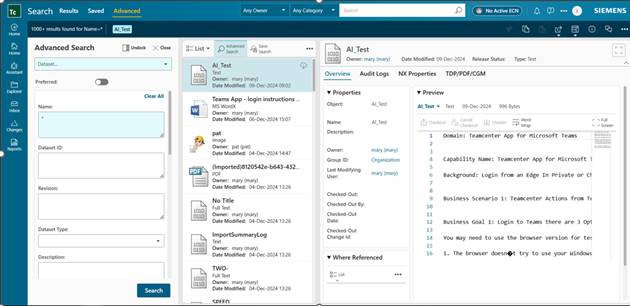
The results will be displayed.
Step3: Save the search:
- Click
on the Save Search tab.
- Name:
Enter a Save Search Name (e.g.,AITEST)
- Check
the box for "Allow others to view"
- Click
Save
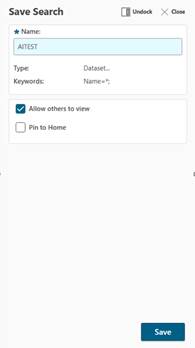
Step4: Login to RAC or AW using the infodba
user.
Step5: Edit Preferences:
- Navigate
to the Edit Options section.
- Search
for the TC_AI_knowledge_bases preference.
- Click
Edit and enter the following values:
- Format: "knowledge base name":"saved search name";"user name"
- Example:
AITEST:AITEST;infodba
- Click
Add and then Save.
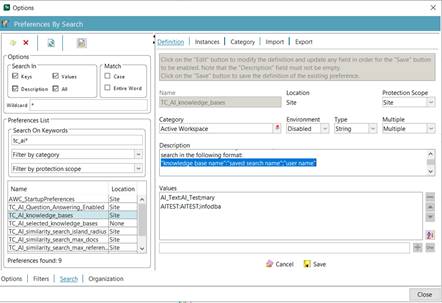
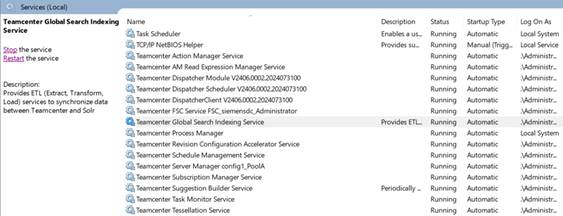
Step6: Stop the Teamcenter Global Search Indexing
Service:
- Go
to Services and stop the service named "Teamcenter Global
Search Indexing Service".
Step7: Run the Teamcenter Full-Text Indexer Command:
- Open
the Teamcenter command prompt.
- Navigate
to the directory: D:\apps\PLM\TC_Root\TcFTSIndexer\bin
- Run
the following command:
Enter
following arguments- runTcFTSIndexer -task=objdata:embed -kbs="AITEST"

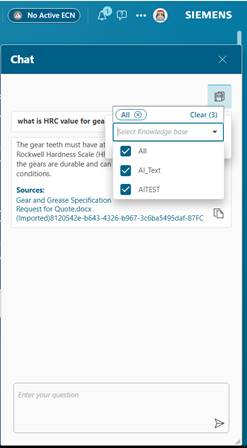
Step8: Verify in Active Workspace Client (AWC)
- Log in to AWC.
- Click
on the TCAI Chat Icon.
- Select
the newly created Knowledge Base (KB).
Q: Smart Discovery Configurations?
A: In the below preference, add the below value
EBOM Product
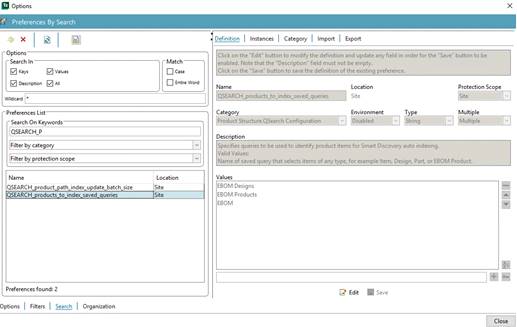
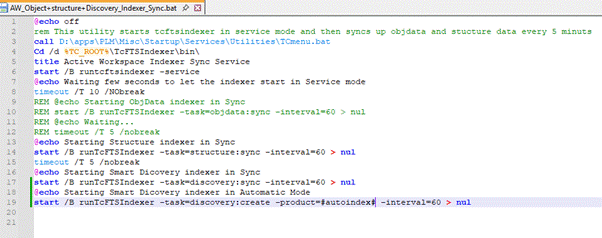
In the indexing script, added highlighted lines to
automatically Smart Discovery
Go to,
D:\apps\PLM\Misc\Startup\Services\Indexer\AW_Object+structure+Discovery_Indexer_Sync.bat